Short answer: Start with a different cable and adaptor plugged into a wall socket, then look for lint in the charging port and check whether a setting or alert has paused charging. If the device still won’t charge after a restart and a 30-minute charge, the port, cable connection or battery may need a repair check.
Rule out the cable, adaptor and socket
Charging faults are often caused by the accessory, not the device. Plug the adaptor into a wall socket rather than a computer port, and check that the cable is pushed firmly into both ends. Try a different socket, then a cable and adaptor you know work with another device.
Look along the cable for fraying, kinks or bent connectors. Apple advises not to use damaged accessories. If you normally charge wirelessly, test with a cable first: it separates a wireless pad problem from a device problem.
Manufacturer steps: Apple’s guide for an iPhone that won’t charge and Google’s guide for a Pixel that won’t charge.
Look at the charging port, gently
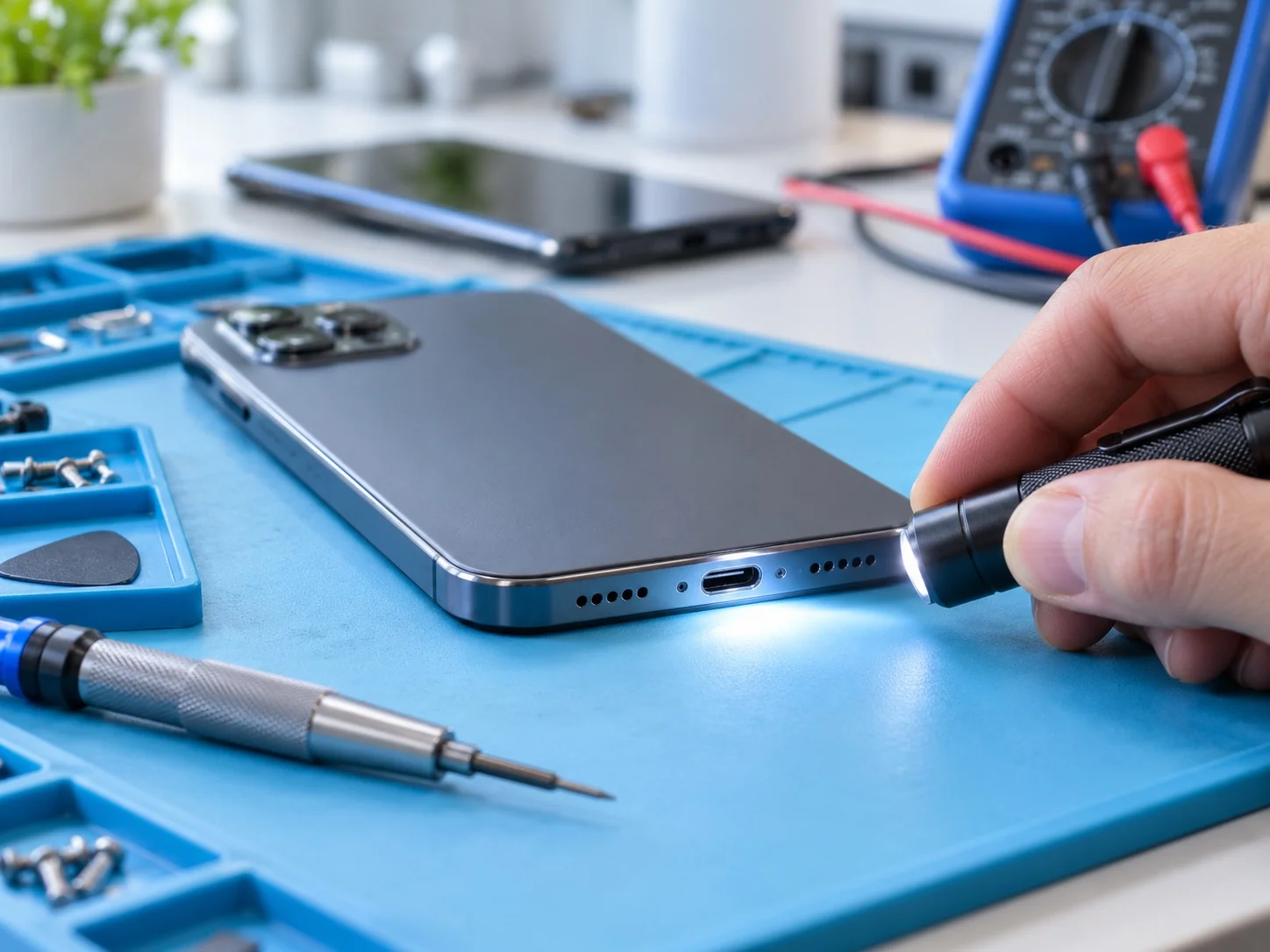
Pockets and bags push lint into charging ports. Over time it packs down and stops the plug seating fully, so charging becomes intermittent or only works at an angle. Shine a torch into the port and look for debris.
Apple’s troubleshooting steps include cleaning the charging port. Be gentle: do not push metal objects such as pins or paper clips into the port, because they can damage the contacts. If you can see debris that will not come out easily, mention it in your repair enquiry instead of forcing it.
Check for a setting or alert that pauses charging
Sometimes a phone is working as designed:
- Stops at 80%. On iPhone, Optimised Battery Charging can hold the charge at 80% until you usually unplug. iPhone 15 and later models can also have a charge limit set. Many Android phones have similar battery-protection options in their battery settings.
- Too warm. Apple notes that software may limit charging above 80% when the phone gets too warm. Move the phone and charger somewhere cooler.
- An accessory alert. An iPhone alert that an accessory is not supported can point to a dirty port, a damaged cable or an unsuitable charger.
- A moisture warning. iPhone and Samsung Galaxy devices stop wired charging when liquid is detected in the port. Samsung notes that high humidity can trigger its water drop icon. See our guide for a phone that got wet.
Restart, then give it time
A completely flat battery can take a while to show any sign of life. Apple’s steps are to restart the device, let it charge for half an hour, force restart if it still shows nothing or only a battery icon, and then charge for another 30 minutes. Google’s Pixel steps also include charging for at least 30 minutes.
Installing the latest software update is worth doing too, once the device has enough charge.
When it’s time for a repair check
If the checks above have not helped, the fault may be in the charging port, the connection inside the device or the battery. Signs worth mentioning in an enquiry:
- Charging only works when the cable is held at an angle, or stops when the cable moves.
- The plug feels loose or will not click in fully.
- The device charges wirelessly but not with any cable, or the reverse.
- Nothing happens with several chargers you know work.
- An accessory or moisture alert appears every time, even when the device is dry.
Tell us the exact model, what you have already tried and whether wired and wireless charging behave differently. Our repair enquiry guide shows what else helps. If the device is hot, smells unusual or the case is lifting, stop charging it and read the swollen battery advice in our battery health guide.
General guidance from FixnSave based on the linked manufacturer and safety information. Menus, alerts and steps vary by model and software version. This guide does not diagnose your device.
READY TO TALK?
Tell us what’s happening.
Share your model and symptoms to start a repair enquiry.
Start an enquiry